Create an OpenAI Assistant with Integration to Google Drive
Illustrates the creation of an OpenAI Assistant capable of retrieving and leveraging files from Google Drive, allowing it to respond to inquiries or execute tasks based on the information contained in documents.
How it works
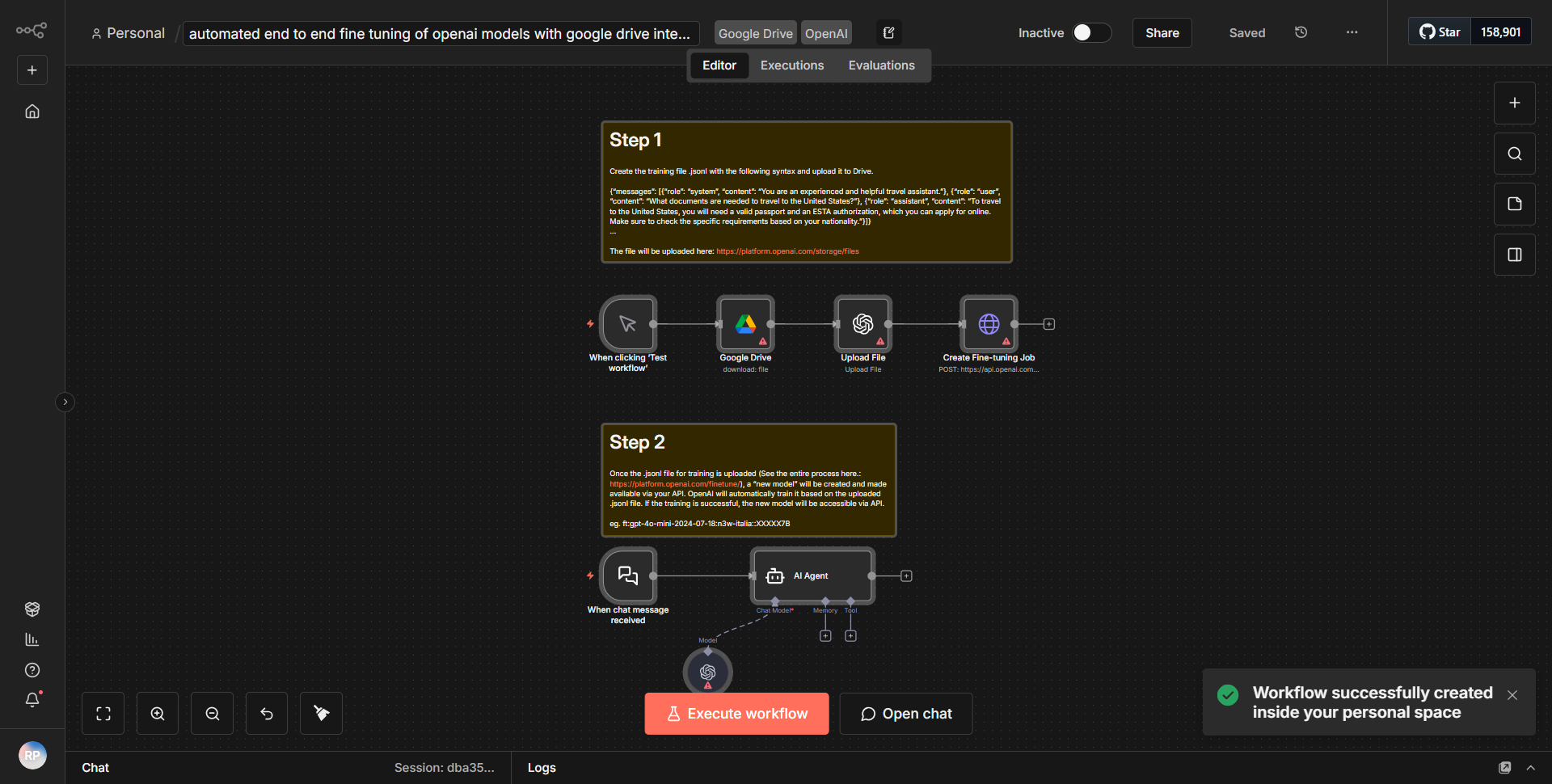
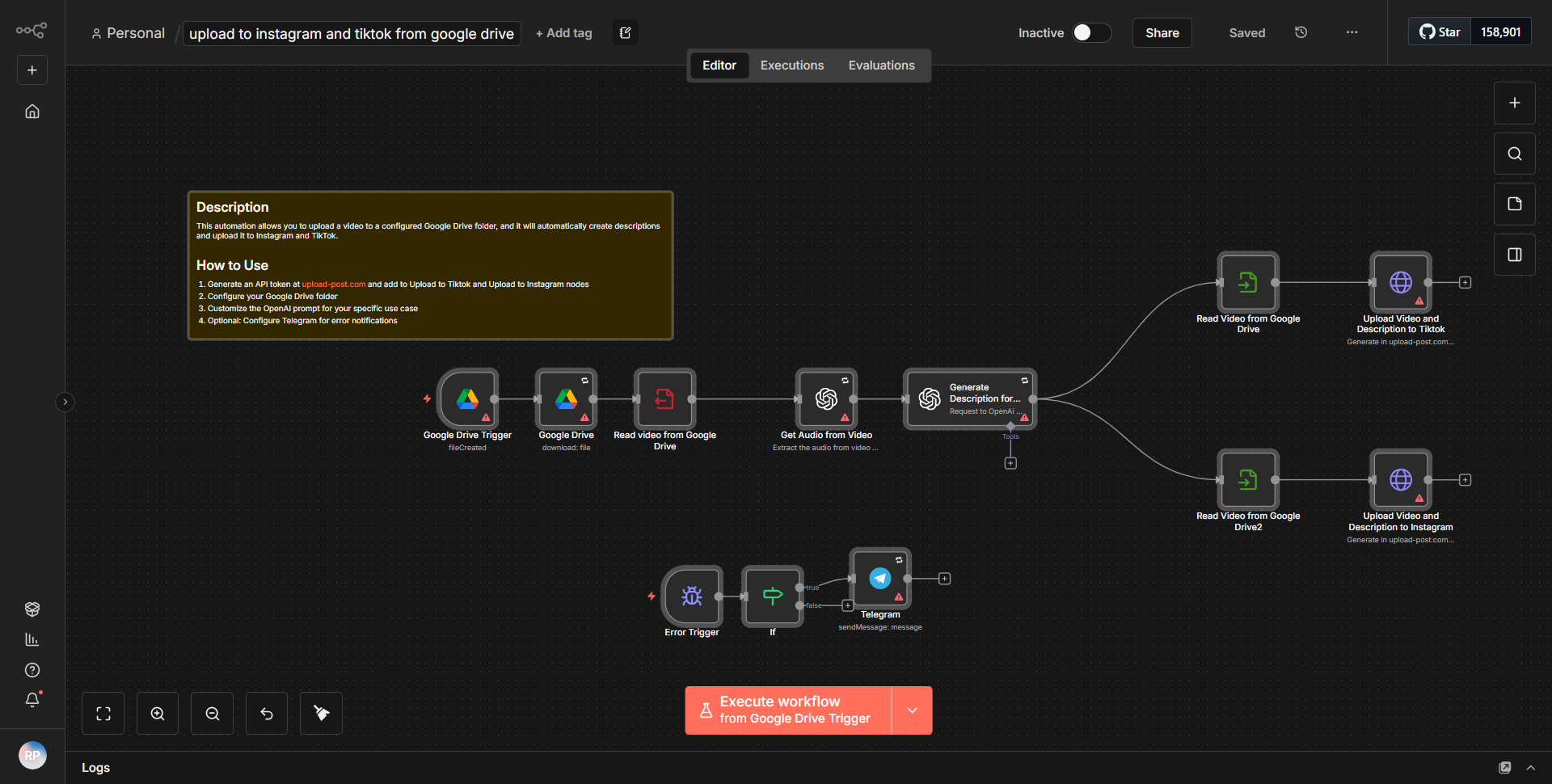
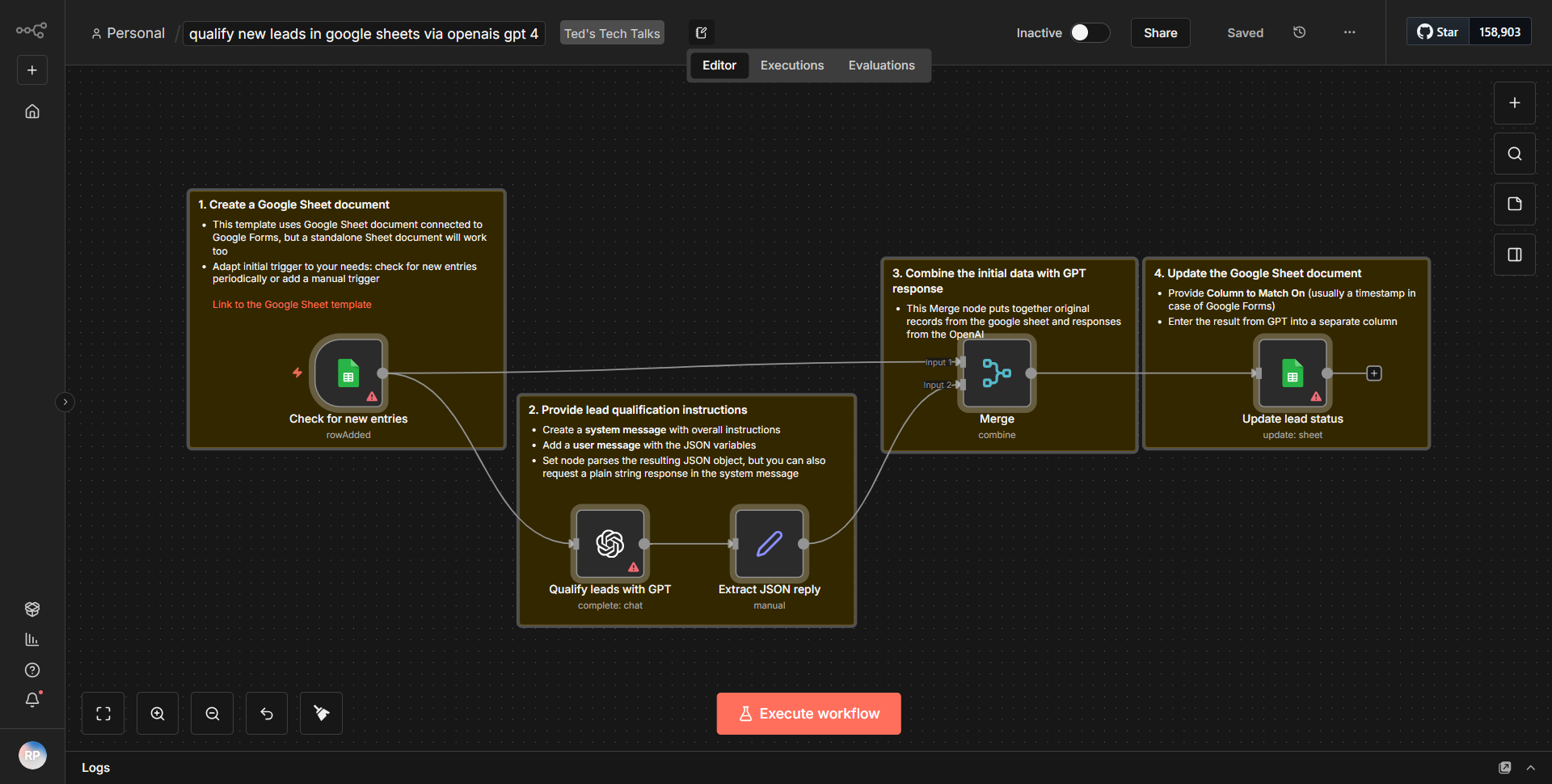
The workflow titled "Create an OpenAI Assistant with Integration to Google Drive" operates by integrating OpenAI's capabilities with Google Drive to facilitate the retrieval and utilization of documents in response to user inquiries. The workflow begins with a trigger node that listens for incoming requests, which can be initiated through various means, such as a webhook or a scheduled event.
1. Trigger Node:
The workflow starts with a trigger node that activates upon receiving a request. This node captures the user's query or command.
2. Google Drive Node:
Following the trigger, the workflow utilizes a Google Drive node to search for files based on the user's input. This node is configured to filter documents that may contain relevant information to answer the user's question.
3. OpenAI Node:
Once the relevant files are retrieved, the workflow passes the content of these documents to an OpenAI node. This node processes the text and generates a response based on the information extracted from the Google Drive documents.
4. Response Node:
Finally, the generated response is sent back to the user through a response node. This node formats the output appropriately, ensuring that the user receives a coherent and informative reply.
The data flow is linear, moving from the trigger to the Google Drive node, then to the OpenAI node, and concluding with the response back to the user. Each node is interconnected to ensure seamless data transfer and processing.
Key Features
- Integration with Google Drive:
The workflow allows the OpenAI Assistant to access and utilize files stored in Google Drive, making it capable of answering questions based on existing documents.
- Dynamic Query Handling:
Users can ask various questions, and the assistant dynamically searches for relevant documents, ensuring that responses are tailored to the specific inquiry.
- Natural Language Processing:
By leveraging OpenAI's capabilities, the workflow can interpret user queries in natural language and provide contextually appropriate responses.
- Automation of Document Retrieval:
The workflow automates the process of searching and retrieving documents, significantly reducing the time and effort required to find information manually.
- User-Friendly Response Formatting:
The final output is structured in a user-friendly manner, enhancing the overall user experience when interacting with the assistant.
Tools Integration
- Google Drive:
Utilized for accessing and retrieving documents. The Google Drive node is configured to search and filter files based on user input.
- OpenAI:
This node processes the text content extracted from Google Drive and generates responses using advanced natural language processing techniques.
- n8n Trigger Node:
Initiates the workflow upon receiving a request, allowing for real-time interaction with users.
- n8n Response Node:
Sends the generated response back to the user, ensuring that the output is well-formatted and easy to understand.
API Keys Required
- Google Drive API Key:
Required for authentication and access to Google Drive files. Users must configure their Google Drive node with the appropriate credentials.
- OpenAI API Key:
Necessary for accessing OpenAI's services to generate responses based on the document content. This key must be included in the OpenAI node configuration.
No additional API keys or credentials are required beyond those specified for Google Drive and OpenAI.