Create a response draft in Gmail using OpenAI Assistant
Creates draft responses in Gmail with the help of OpenAI. Activates upon receiving new emails, pulls out relevant information, and formulates a proposed reply draft to facilitate quicker responses.
How it works
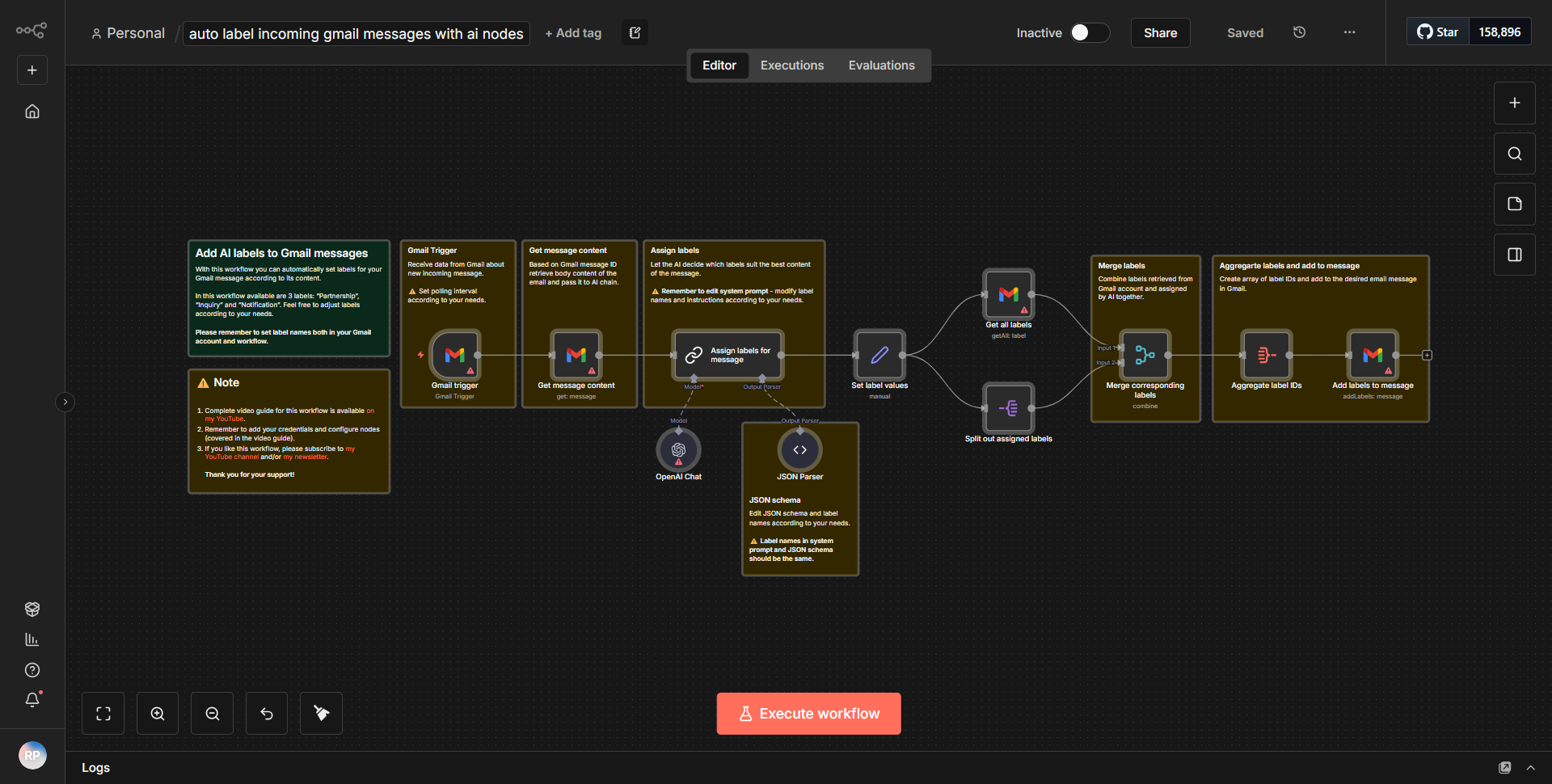
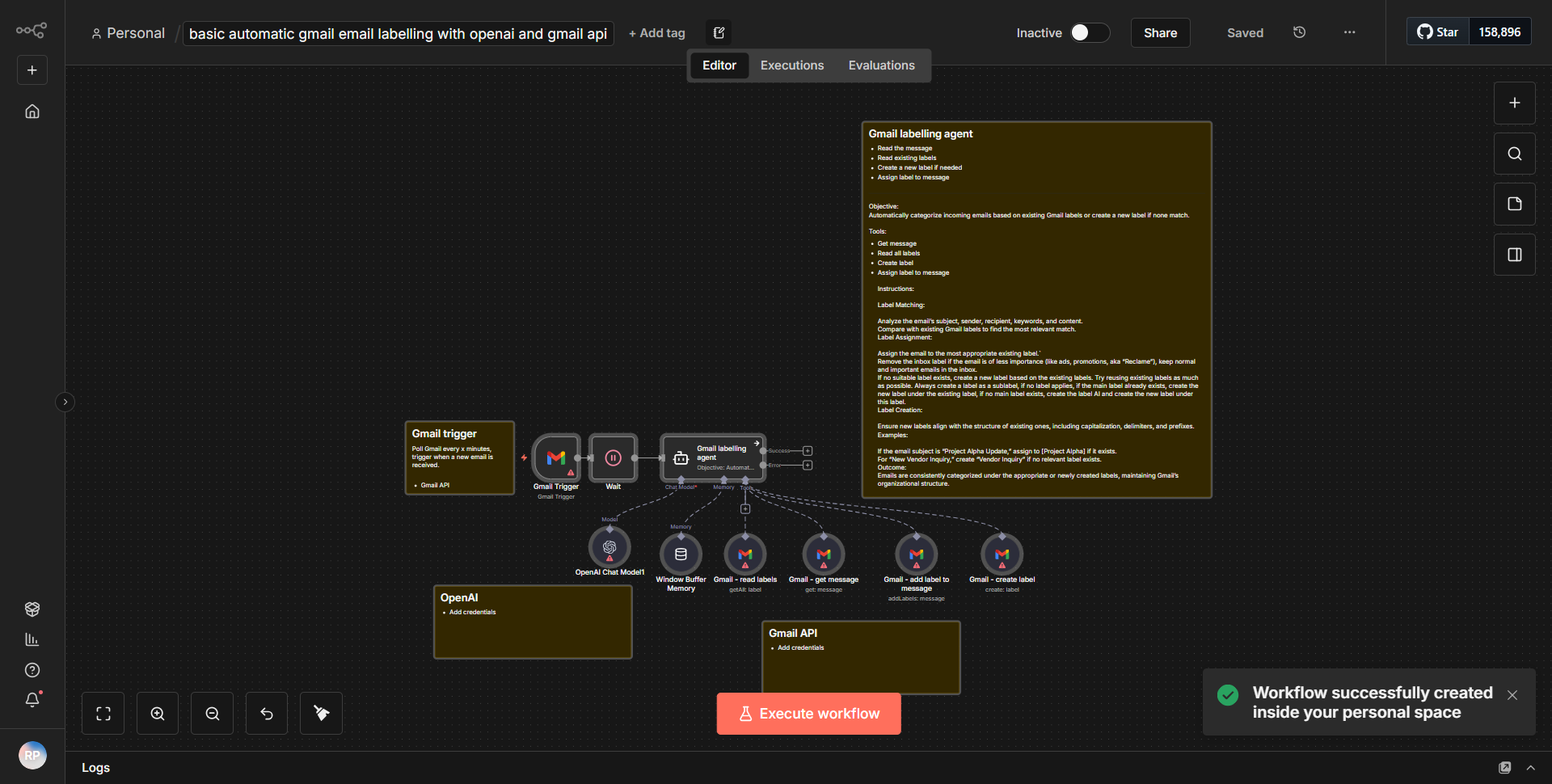
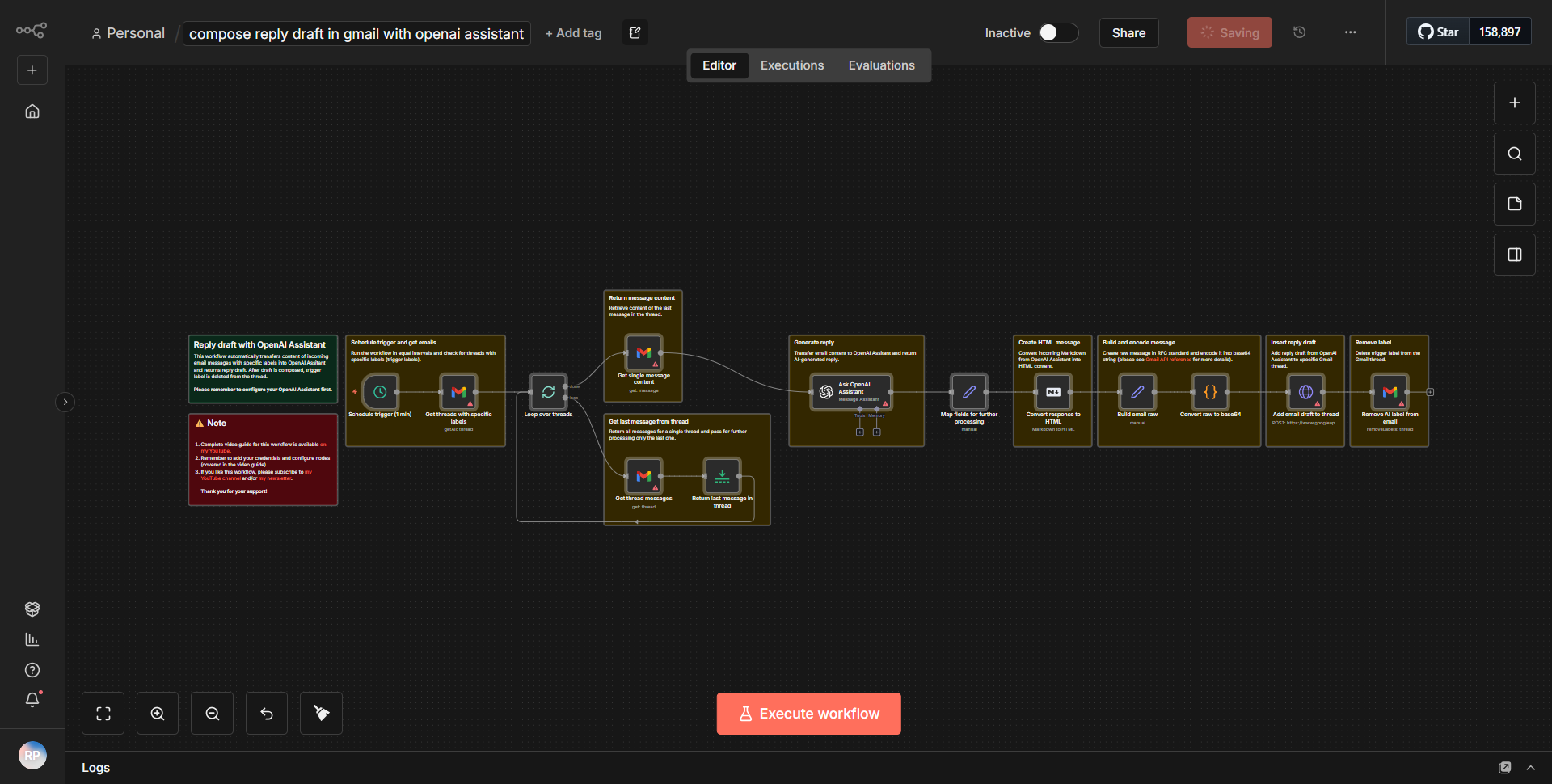
The workflow titled "Create a response draft in Gmail using OpenAI Assistant" is designed to automate the process of drafting email responses in Gmail by leveraging the capabilities of OpenAI. The workflow is triggered when a new email is received in the user's Gmail account. Here’s a step-by-step breakdown of how the workflow operates:
1. Trigger Node:
The workflow begins with the "Gmail Trigger" node, which listens for new incoming emails. This node is configured to activate whenever a new email arrives in the specified Gmail account.
2. Extracting Email Data:
Once triggered, the workflow retrieves relevant information from the new email. This includes the sender's address, subject line, and body content. This data is essential for formulating a contextual response.
3. OpenAI Node:
The extracted email data is then passed to the "OpenAI" node. This node utilizes the OpenAI API to generate a draft response based on the content of the incoming email. The prompt sent to OpenAI includes the email body and other contextual information to ensure the generated response is relevant and coherent.
4. Draft Creation:
After receiving the generated response from OpenAI, the workflow proceeds to the "Gmail" node, specifically configured to create a draft email. The content generated by OpenAI is used as the body of the draft, and the original sender’s address is set as the recipient.
5. Completion:
Finally, the draft email is saved in the user's Gmail account, allowing the user to review and send it at their convenience.
Throughout this process, the workflow efficiently automates the drafting of email responses, significantly reducing the time and effort required to reply to emails.
Key Features
- Automated Email Responses:
The workflow automates the process of drafting email replies, allowing users to respond to emails more quickly and efficiently.
- Contextual Understanding:
By utilizing OpenAI, the workflow generates responses that are contextually relevant to the incoming email, enhancing the quality of communication.
- User-Friendly Drafts:
The generated drafts are saved in the user's Gmail account, making it easy for users to review and send them later.
- Real-Time Activation:
The workflow is triggered in real-time upon receiving new emails, ensuring timely responses to incoming messages.
- Customizable Prompts:
Users can customize the prompts sent to OpenAI, allowing for tailored responses based on specific needs or styles.
Tools Integration
The workflow integrates the following tools and services:
- Gmail:
Utilized for both triggering the workflow upon receiving new emails and for creating draft responses. The specific nodes used are:
• Gmail Trigger
• Gmail (for creating drafts)
- OpenAI:
This service is used to generate the email response drafts based on the content of the incoming emails. The specific node used is:
• OpenAI
API Keys Required
To successfully operate this workflow, the following API keys and authentication configurations are required:
- Gmail API Key:
Necessary for accessing the user's Gmail account to read incoming emails and create drafts.
- OpenAI API Key:
Required to authenticate requests made to the OpenAI service for generating email responses.
Users must ensure that they have valid API keys for both Gmail and OpenAI configured within their n8n environment for the workflow to function correctly.